FAQ
Signage
Kiosk mode
Using a browser in kiosk mode can be beneficial. This hides the URL bar and makes optimal use of your screen.
The settings specified in the script provide the following options:
- --kiosk --edge-kiosk-type=fullscreen: Uses full-screen mode. This launches the browser directly in full-screen, without an address bar, tabs, close buttons, or Windows borders.
- --autoplay-policy=no-user-gesture-required: No interaction is required to play audio. It bypasses the built-in security feature that requires a visitor to physically click on the page before audio can play.
- --no-first-run: Ensures that Edge does not display pop-ups regarding user profiles or privacy settings during a browser update or initial launch—pop-ups that would otherwise block your signage screen.
- --hide-crash-restore-bubble: Prevents the "restore previous session" prompt from appearing if the browser shuts down unexpectedly. #### MS Edge
@echo off
:: Close any background Edge processes to prevent errors
taskkill /f /im msedge.exe >nul 2>&1
timeout /t 1 /nobreak >nul

:: Start Edge in fullscreen kiosk mode with autoplay enabled
start "" "C:\Program Files (x86)\Microsoft\Edge\Application\msedge.exe" --kiosk "https://signage.fireplug.be" --edge-kiosk-type=fullscreen --autoplay-policy=no-user-gesture-required --no-first-run --hide-crash-restore-bubble
Google Chrome
@echo off
:: Close active Chrome processes
taskkill /f /im chrome.exe >nul 2>&1
timeout /t 1 /nobreak >nul

:: Start Chrome in kiosk mode, without crash recovery and with autoplay
start "" "C:\Program Files\Google\Chrome\Application\chrome.exe" --kiosk "https://signage.fireplug.be" --autoplay-policy=no-user-gesture-required --hide-crash-restore-bubble --disable-session-crashed-bubble --no-first-run --no-default-browser-check
Audio settings
To play audio in the browser, there must first be an interaction with the page—such as typing in a field or clicking a button. This presents a challenge for the signage solution. There are several ways to address this.
Solution 1
The first solution is suitable for a one-time setup on a browser that does not undergo a reset. If your browser is cleared by a startup script every time it launches, you should consider option 2 instead.
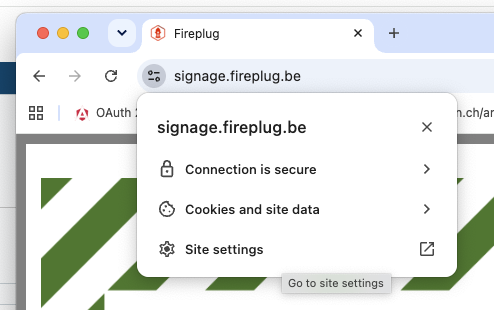
Navigate to https://signage.fireplug.be using the browser you intend to use. Next, click on the settings at the beginning of the URL.
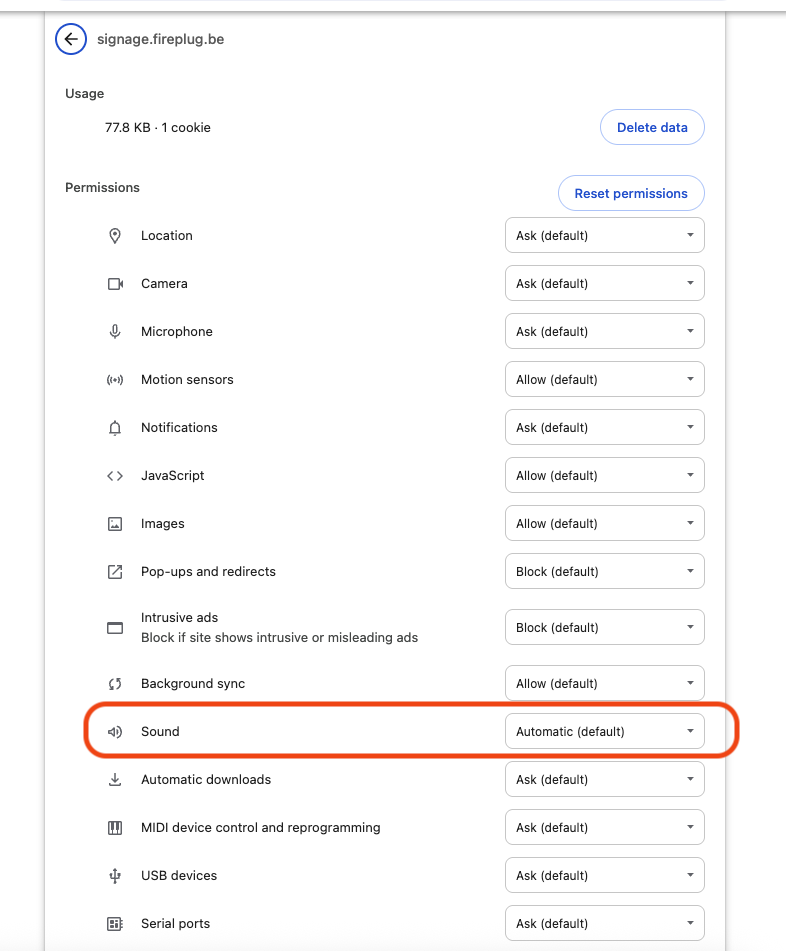
On the next page, scroll down to the audio settings.
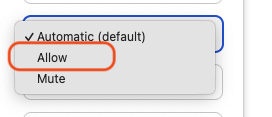
Select Allow here.
Solution 2
Solution 2 uses a startup script.
Add the following option to the startup script:
--autoplay-policy=no-user-gesture-required