Settings
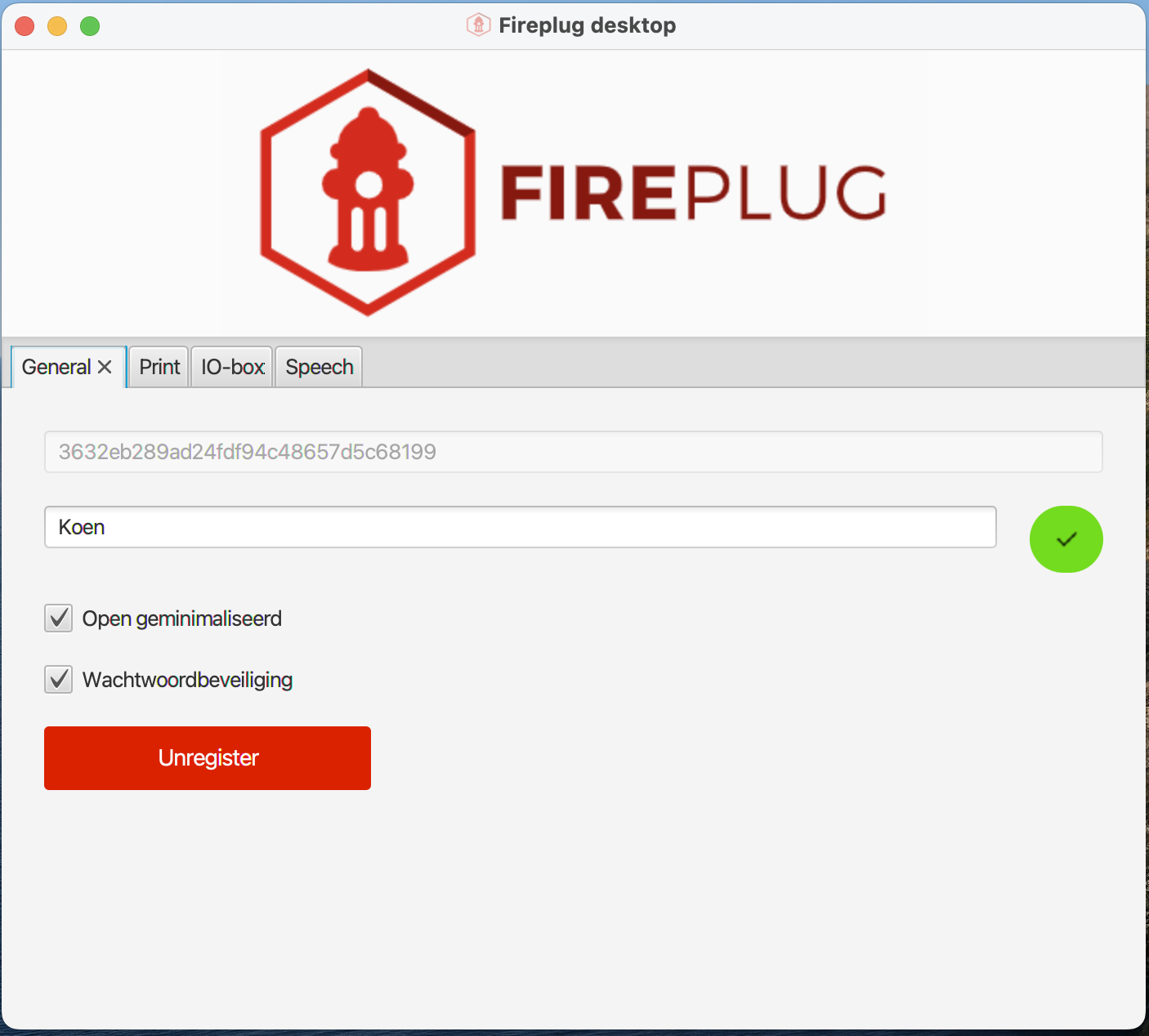
The first step is to connect to your Fireplug account. To do this, you need to log in to the web application and copy the application key from the General settings.
General
You can manage the connection to Fireplug in this tab.
- Key: API key to connect to Fireplug.
- Name: A name to identify the application in the Fireplug environment. It is possible to connect multiple installations to the same account. This allows you to print or issue IO commands from different locations.
- Open minimized If this option is checked, the settings screen will not open automatically when the desktop application starts.
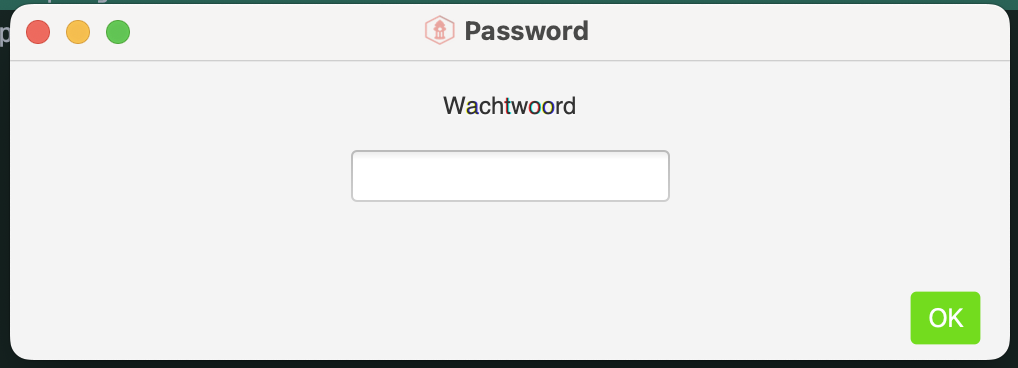
- Password protection Check this option and enter (and confirm) a password to protect the settings with a password. Every time you open the settings, you must first enter the password before the settings screen opens.
Password
Printers
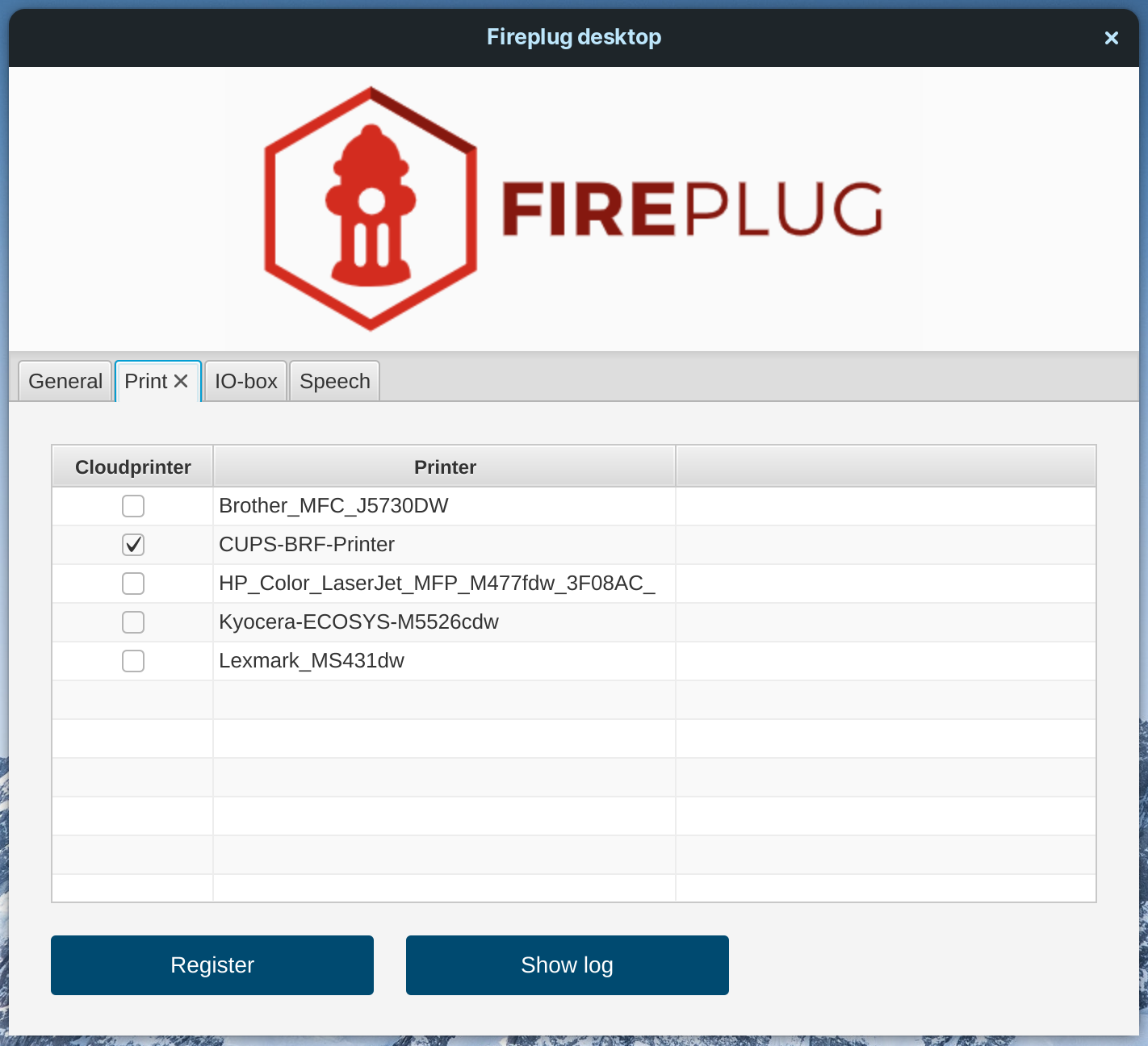
A list of all possible printers available for your device is displayed here. By selecting the desired printers and then clicking the Register button, they will be activated in Fireplug.
You can then select these printers for various actions in the application.
IO
Overview
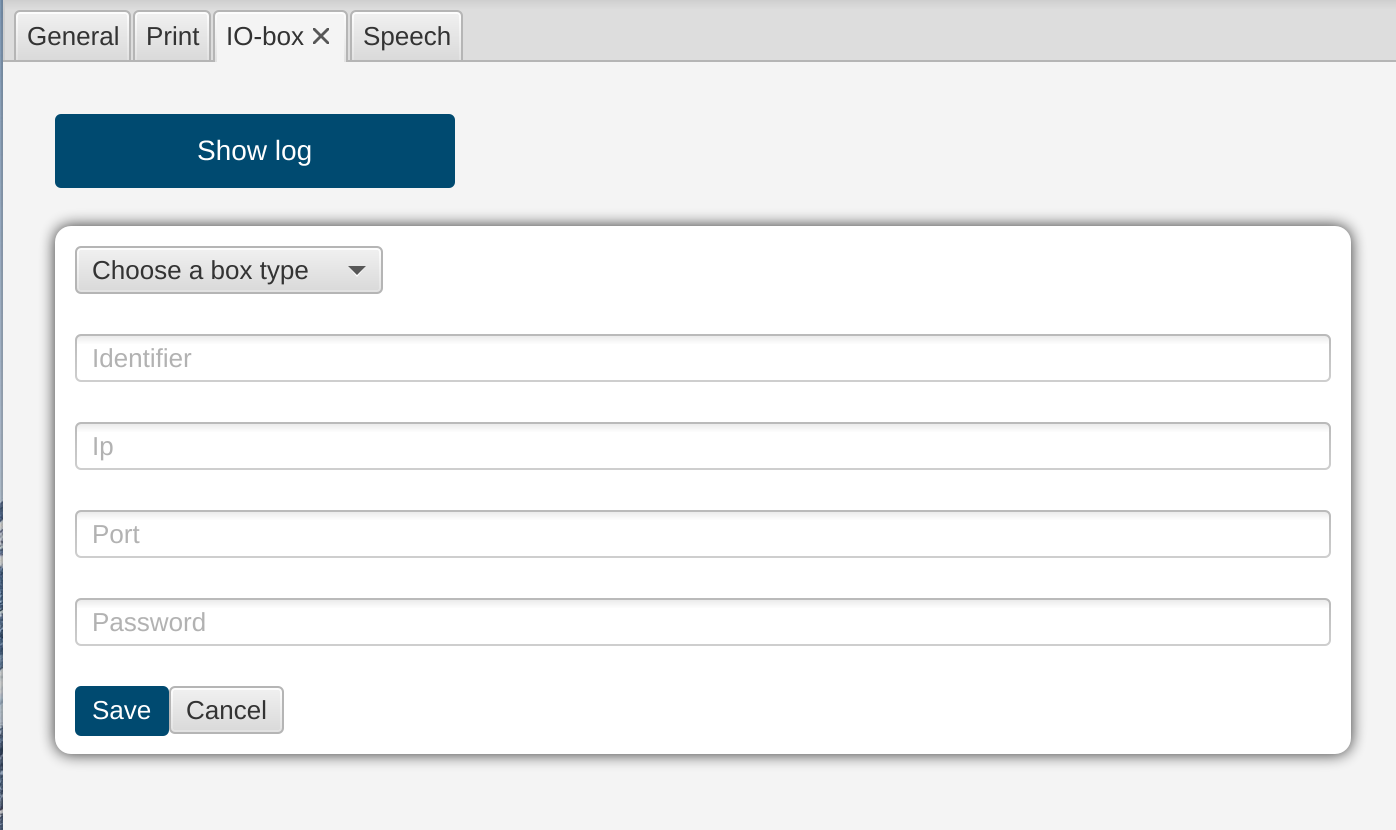
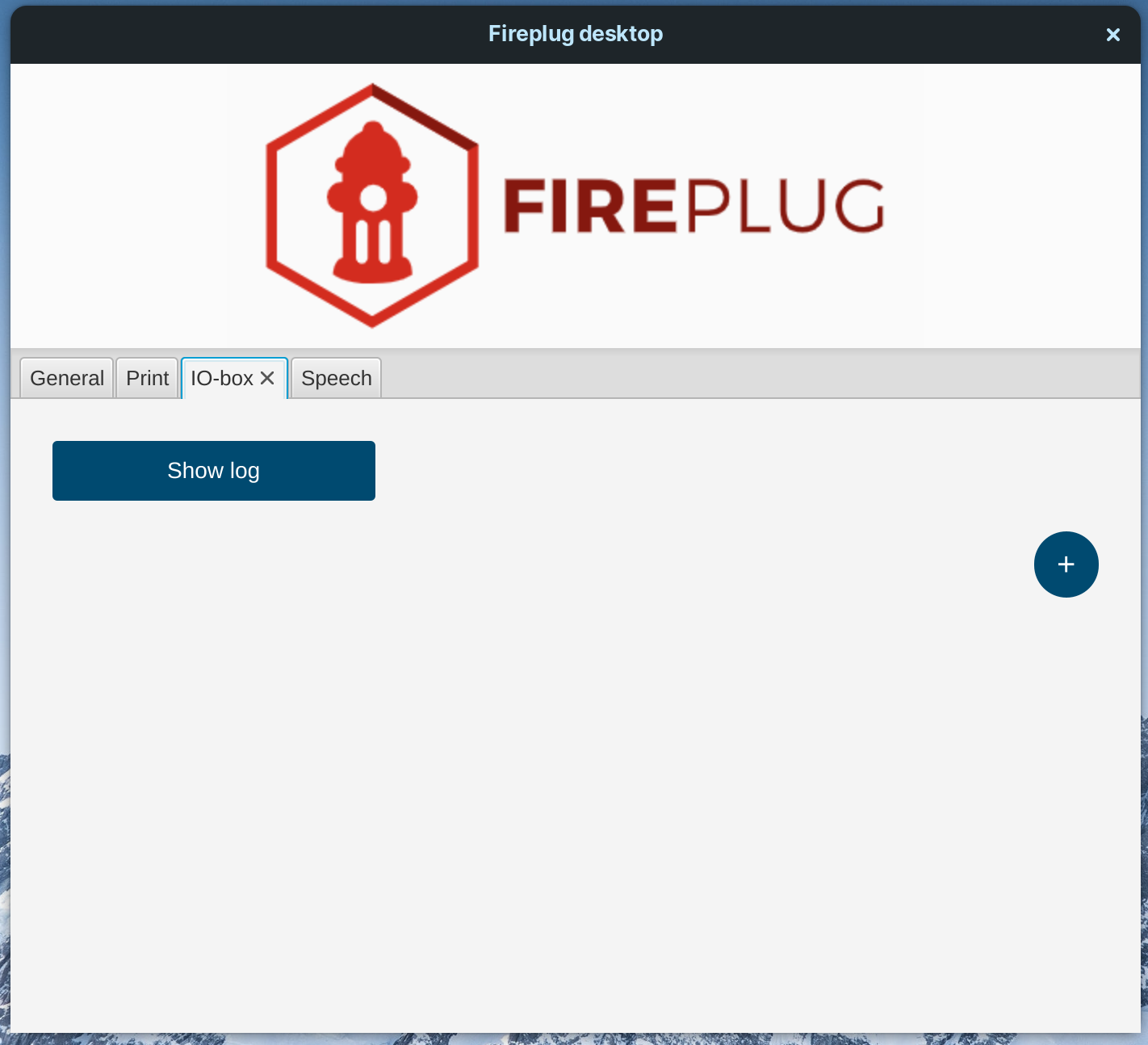
The first page shows an overview of the active IO boxes associated with this installation.
Add